
The CMS with a built-in encrypted database

Updates: Easy Soft Edit, modules and widgets

Update a live site without reinstalling it, with backup and a way back.
A live site is never reinstalled. Easy Soft Edit updates like software: a signed package, a simulation, an application with backup, and a way back. Your content, accounts and settings are never touched.

Signed packages

Every update carries a digital signature, checked before anything is written. A tampered package, or one from elsewhere, is refused.

Simulation first

You see what will be added, changed or removed, and any conflicts, before applying anything.

Your changes respected

A file you changed yourself is never overwritten without your explicit agreement.

Backup and way back

Replaced files are backed up. On failure everything is restored; afterwards, a button undoes the last update.

In order, never twice

Packages are numbered: each requires the previous one. The installed number is shown, and a package already applied is refused.

Your data stays

Articles, accounts, settings, Templates and texts are not part of packages: an update only replaces the CMS code.

The Update screen

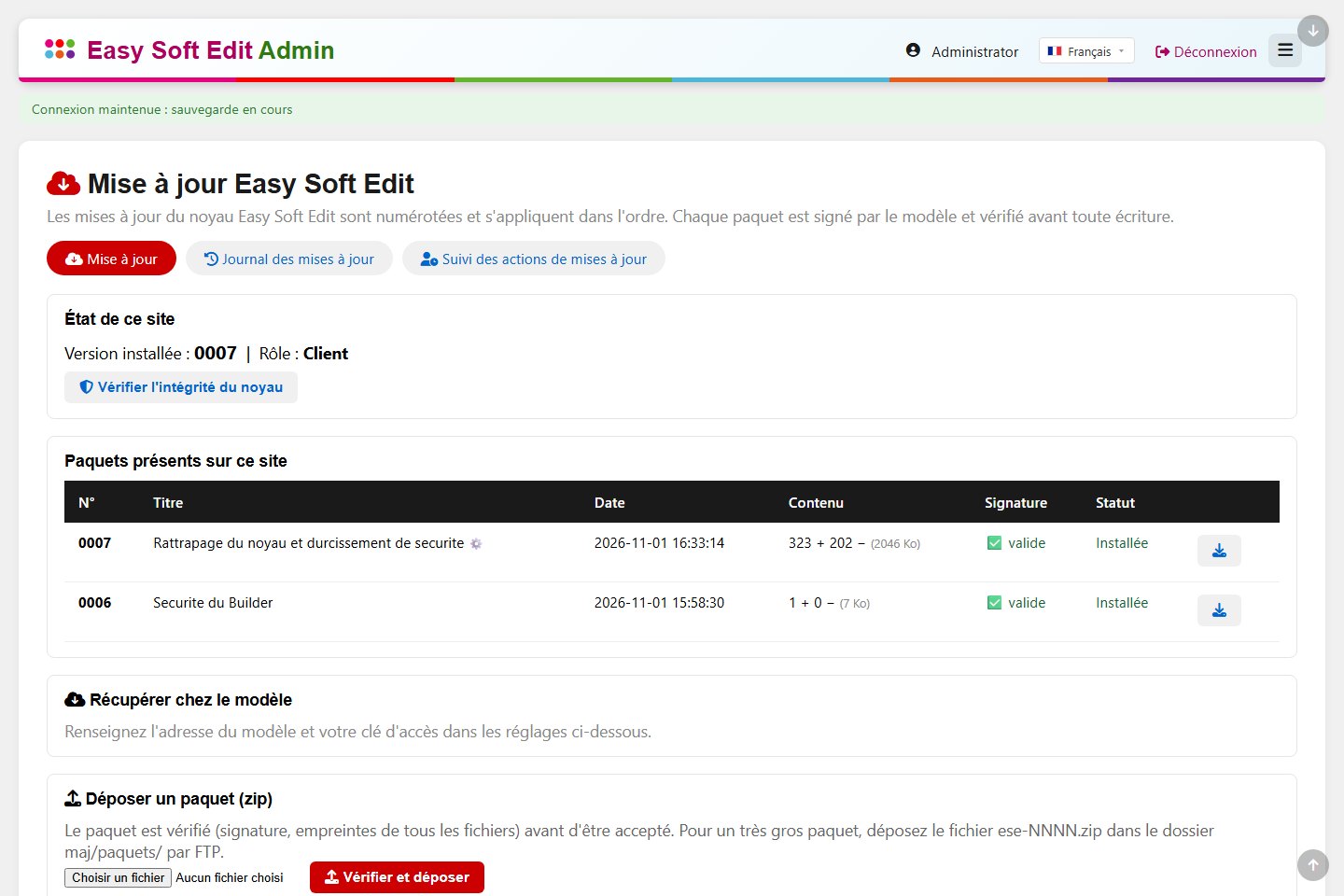
The “Easy Soft Edit update” screen: installed version, packages present with their signature, fetch from the model and package upload

Updating in four steps

  1. Back up. Run a backup of your data from the administration: a restore point before any operation.
  2. Upload the package. Technical › Easy Soft Edit update › Upload a package (zip). The signature and the fingerprints of every file are checked at once.
  3. Simulate. The detail is shown: files added, changed, removed, and any conflicts. Nothing has been written yet.
  4. Apply. Replaced files are backed up, the version number moves forward, and the log keeps a record of the operation.

Some packages carry a post-installation script (for example to add interface texts) or an update of the update tool itself: they only run if you tick the matching box.

Three ways to proceed

MethodWho for
Manual zip uploadYou receive the package (by email, for example) and upload it in the administration, or by FTP into maj/paquets/ for a very large one. Ideal to keep control of the timing.
Fetch from the modelThe site is declared a “client” of a model site with a revocable access key: a button looks for and fetches the available packages, always verified before being accepted.
New installationFor a new site, use the installation kit of the same version: the installer declares the version number by itself, there is nothing to replay.

Modules and widgets: a built-in catalogue

Modules and Builder widgets are added and updated without touching the rest of the CMS, from Modules › Catalogue. Each item is a signed package, like an update.

A clear status

Each item is “Not installed”, “Up to date” or “Update available”, with its version.

Preview before installing

You see the new files, updated files and those you modified, the dependencies and the minimum CMS version.

Nothing silently overwritten

A file you modified asks for your agreement, and every replaced file is backed up.

Installed, not imposed

An installed module stays inactive: you activate then initialise it when you decide. A widget appears in the Builder on reload.

Undoable

The last installation can be undone with a button, the original files being restored.

User guide in 6 languages

Every module and widget has its user guide, read in the administration language.

Browse the public catalogue The modules in action

The catalogue in pictures

The list shows, for each module or widget, the available version, the one on your site and its status. A “Not installed” item offers the Install button.
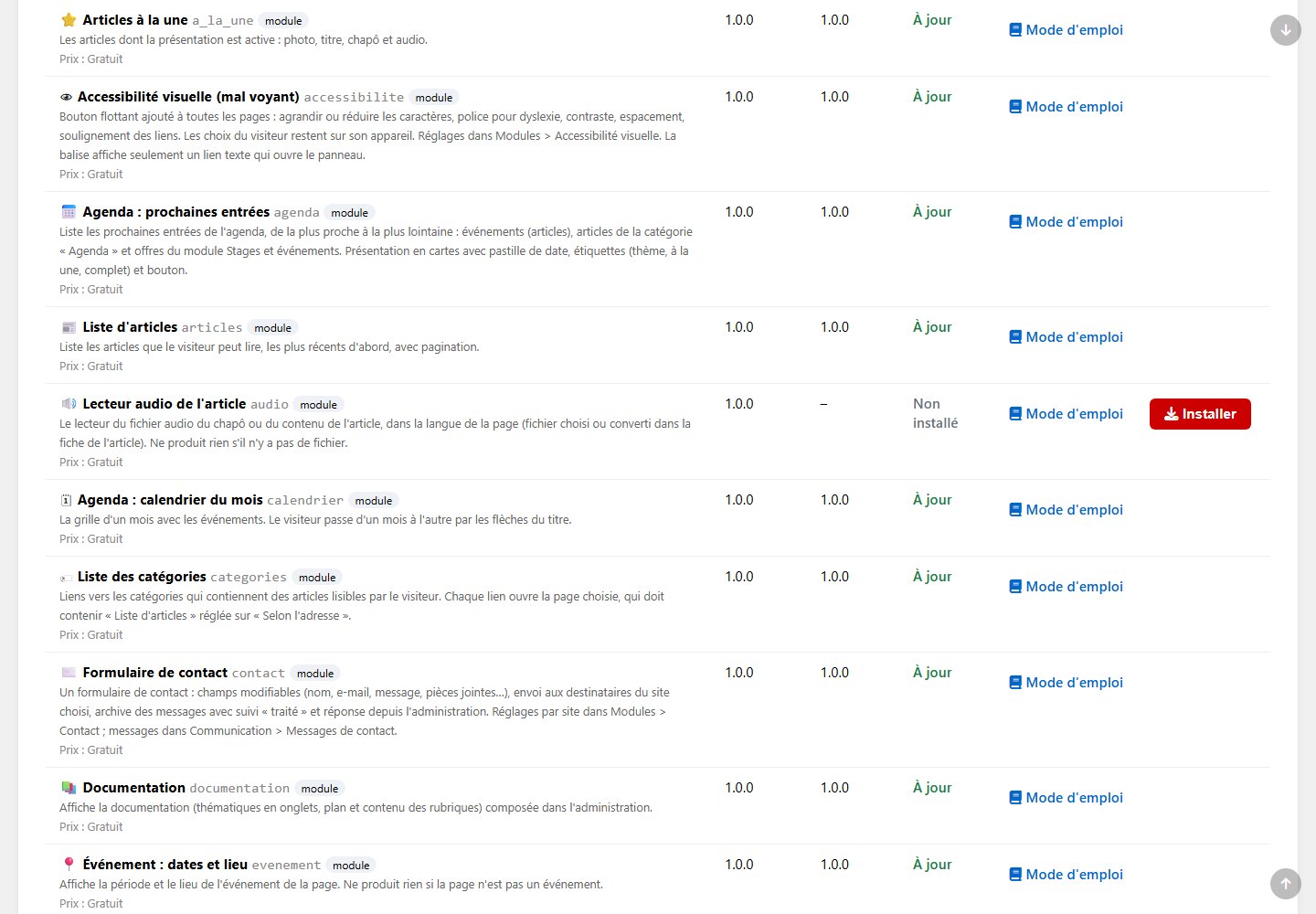
Modules › Catalogue: list of modules and widgets, with available version, installed version, status and user guide

Before installing, a preview lists the files that will be added or replaced: nothing is written until you confirm.
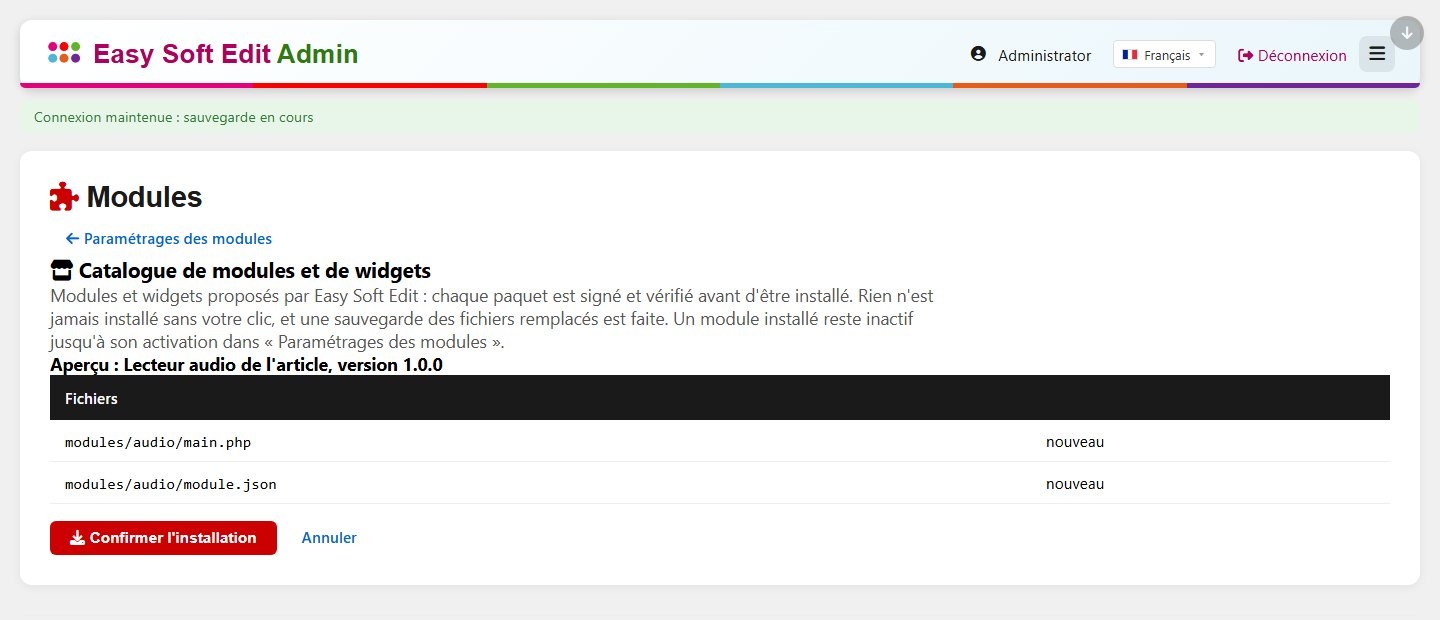
The preview before installing a module: new files, Confirm installation and Cancel buttons

A site that stays up to date, stress-free

We explain the procedure for your hosting.

Request a quote